

Your home Wi-Fi network is the invisible threshold between your private digital life and the open internet. Most routers ship with reasonable defaults, but “reasonable” and “secure” are not the same thing. These five steps take less than an hour and dramatically reduce your exposure to common household network threats.
Step 1: Change the Default Admin Credentials
Every router ships with a factory username and password — typically “admin / admin” or “admin / password.” These defaults are published online in manufacturer databases. Anyone on your network (or within Wi-Fi range, if WPS is enabled) can access your router’s control panel with a two-second search. Log in to your router’s admin interface (usually 192.168.1.1 or 192.168.0.1) and set a strong, unique password. Store it in a password manager, not on a sticky note attached to the router.
Step 2: Use WPA3 (or WPA2 as Minimum)
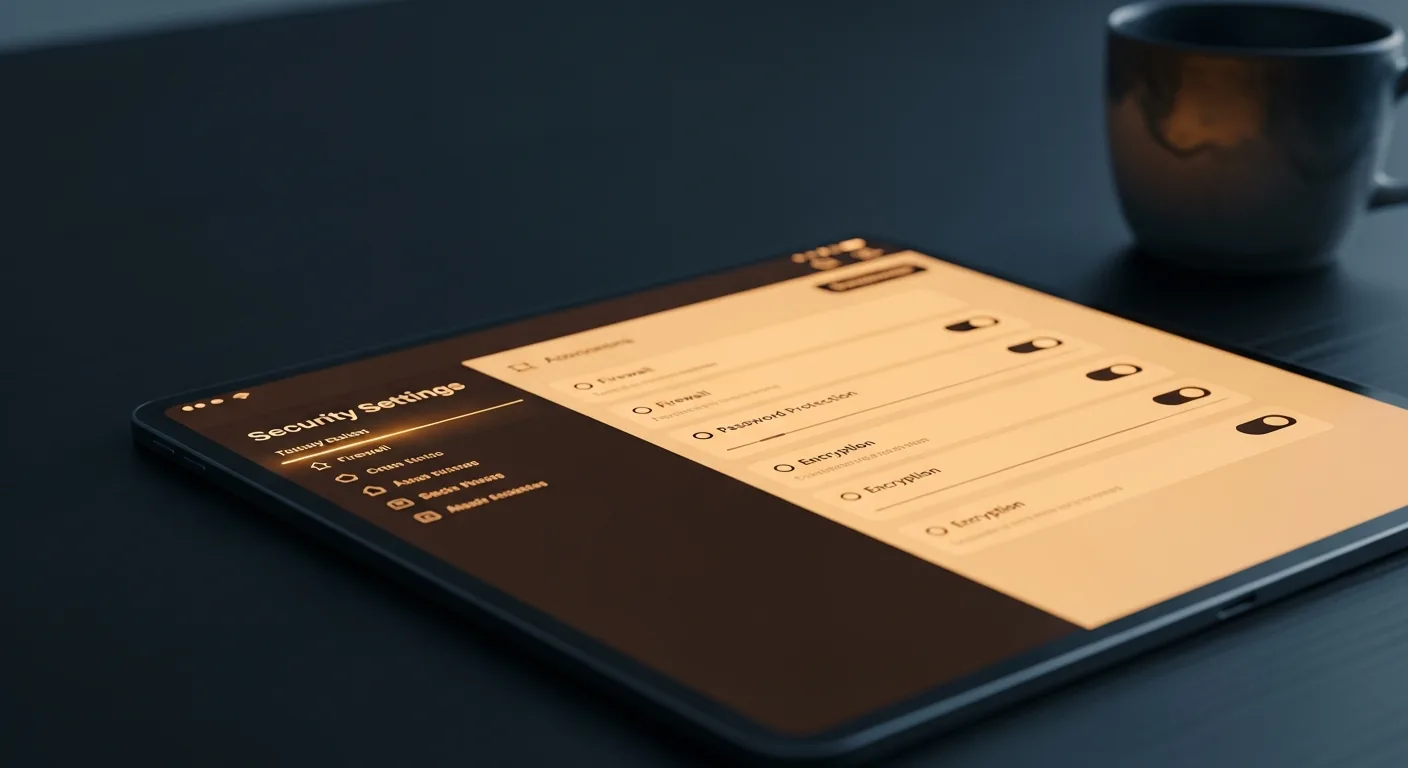
Under your router’s wireless security settings, ensure the encryption protocol is set to WPA3-Personal if your devices support it, or WPA2-Personal as a fallback. Never use WEP — it was broken years ago and offers effectively no protection. If your router only supports WEP, it’s time for new hardware. A modern Wi-Fi 6 router with WPA3 costs less than a good dinner out and lasts five to seven years.
Step 3: Create a Separate Guest Network
Most modern routers support a guest network — a second SSID that shares your internet connection but isolates guest devices from your main network. Visitors, children’s friends, and IoT devices that don’t need access to your NAS or printer should connect here. This containment means a compromised smart bulb can’t become a bridge to your MacBook.
Step 4: Keep Firmware Updated
Router firmware updates patch security vulnerabilities — the same way iOS updates protect your iPhone. Many people set up their router once and never log in again. Check for updates quarterly at minimum. Better routers (ASUS, TP-Link Deco, Ubiquiti) support automatic updates; enable this if available. If your router hasn’t received a firmware update in over two years, the manufacturer has likely discontinued support, and the device should be replaced.
Step 5: Consider DNS-Level Filtering
Changing your router’s DNS server from your ISP’s default to a filtered provider like Cloudflare’s 1.1.1.3 (malware blocking) or NextDNS (customisable filters) adds a network-wide layer of protection. Every device on your network — including those that can’t run antivirus software, like smart TVs and IoT sensors — benefits from DNS filtering without any per-device configuration.
Network security isn’t about paranoia. It’s about building a perimeter that lets you stop worrying and start trusting your own home again.
Need help applying these steps to your specific router model? SilberBridge’s Smart Home and Security consultation includes a full network audit — we review your hardware, optimise your settings, segment your devices, and document everything so you know exactly what’s running and why.

